


For video calls and notes, keep the camera-facing call window on the main screen and put notes on a second area that does not obscure the camera or keyboard. Mobile Pixels DUEX and Glance offer attached and independent arrangements; Dell P1424H and HP E14 G4 are independent office comparisons. Apple Studio Display is a fixed-desk alternative. The best arrangement depends on camera position, legible notes and controlled screen sharing.
Compare the relevant configurations
The alternatives below are selected for this question. Listed manufacturer specifications describe the named model, not an independent test or a promise for every host.
| Option | Documented capability or layout | Useful advantage for this decision | Check before choosing |
|---|---|---|---|
| Mobile Pixels Glance | The independent adjustable stand lets you position the screen without attaching it to the laptop lid. | Independent monitor placement | Confirm exact variant, laptop fit, video route, power and open footprint |
| Mobile Pixels DUEX Max DS | A slide-out arrangement keeps the second screen beside the laptop without a separate monitor base. | An attached reference area | Confirm exact variant, laptop fit, video route, power and open footprint |
| Dell P1424H | 14-inch IPS; 1920 × 1080; two USB-C connections with DisplayPort Alt Mode | Independent tilt placement without attaching a display to the laptop lid | USB-C video support is required; an HDMI source needs a separately verified conversion and power path |
| HP E14 G4 | 14-inch IPS; 1920 × 1080; 400-nit typical brightness | An independent office-oriented screen with a documented brightness specification | Typical brightness is not an outdoor-readability guarantee; confirm video-capable USB-C on the source |
| Apple Studio Display | 27-inch desktop display; 5120 × 2880; 60Hz | A larger fixed Mac workstation rather than an attached travel screen | A desk-based alternative; do not treat it as a backpack-size portable monitor |
A decision test for this workflow
Run a private test call and confirm where your eyes go while reading notes. Share only the intended window and check that private material stays off the shared screen. If the second panel pulls your gaze too far away, change the placement or move only the reference material. A monitor adds workspace; it does not guarantee meeting quality or correct privacy settings.
Choose the task layout before the product
If most interaction is typing, keep the notes in the main working position and the meeting nearby. If you lead the call and need to monitor faces or a shared presentation, keep that content closer to the camera and place the notes on the second screen. There is no universal rule that the meeting belongs on the largest display. Match the layout to the part of the call you actually control.
Account for the camera and screen sharing
A second monitor changes where you look, but it does not automatically move the laptop camera. Check whether the camera view remains useful when the meeting is on a side panel. Before sharing, choose the intended application or display inside the meeting software rather than assuming it will select the correct screen. Keep private notes out of the area you plan to share. These are suggested setup checks, not a claim that a particular app was tested here.
Select a support that makes that layout possible
Glance's independent stand can be useful when the meeting window needs a different position from the laptop. Max DS can be useful when a fixed adjacent reference panel is the goal. Compare cable clearance, screen height and the task's main viewing direction. Microsoft's guidance covers arranging an extended desktop, while OSHA's placement guidance helps evaluate the physical position. Additional refresh capability does not determine whether a notes-and-call layout is usable.
A practical decision example
For a client review, put the shared deck in the intended sharing window and notes on the separate work area. Start with a short internal check that confirms the correct screen is shared and the camera framing is acceptable. Then leave the window positions stable during the meeting rather than rearranging the desktop live.
Verified connection and setup facts
Microsoft's multiple-monitor guidance explains how to identify, arrange and extend detected displays; extending and duplicating are different modes. Source: Microsoft: multiple monitors in Windows.
OSHA's workstation monitor guidance considers placement, viewing distance, glare and the surrounding workstation together. Source: OSHA: workstation monitor placement.
Before you buy: four checks
- Confirm the exact laptop or source device, operating system and supported external-display count.
- Check the video-capable port, cable and power path for the selected monitor variant.
- Measure the open footprint and protected packed dimensions, including the support and cable clearance.
- Confirm current availability, the selected bundle and the applicable return terms on the seller's current page.
Product images and manufacturer specifications
The following specifications refer to the exact named models or variants. Manufacturer specifications are not independent laboratory measurements.
Mobile Pixels Glance
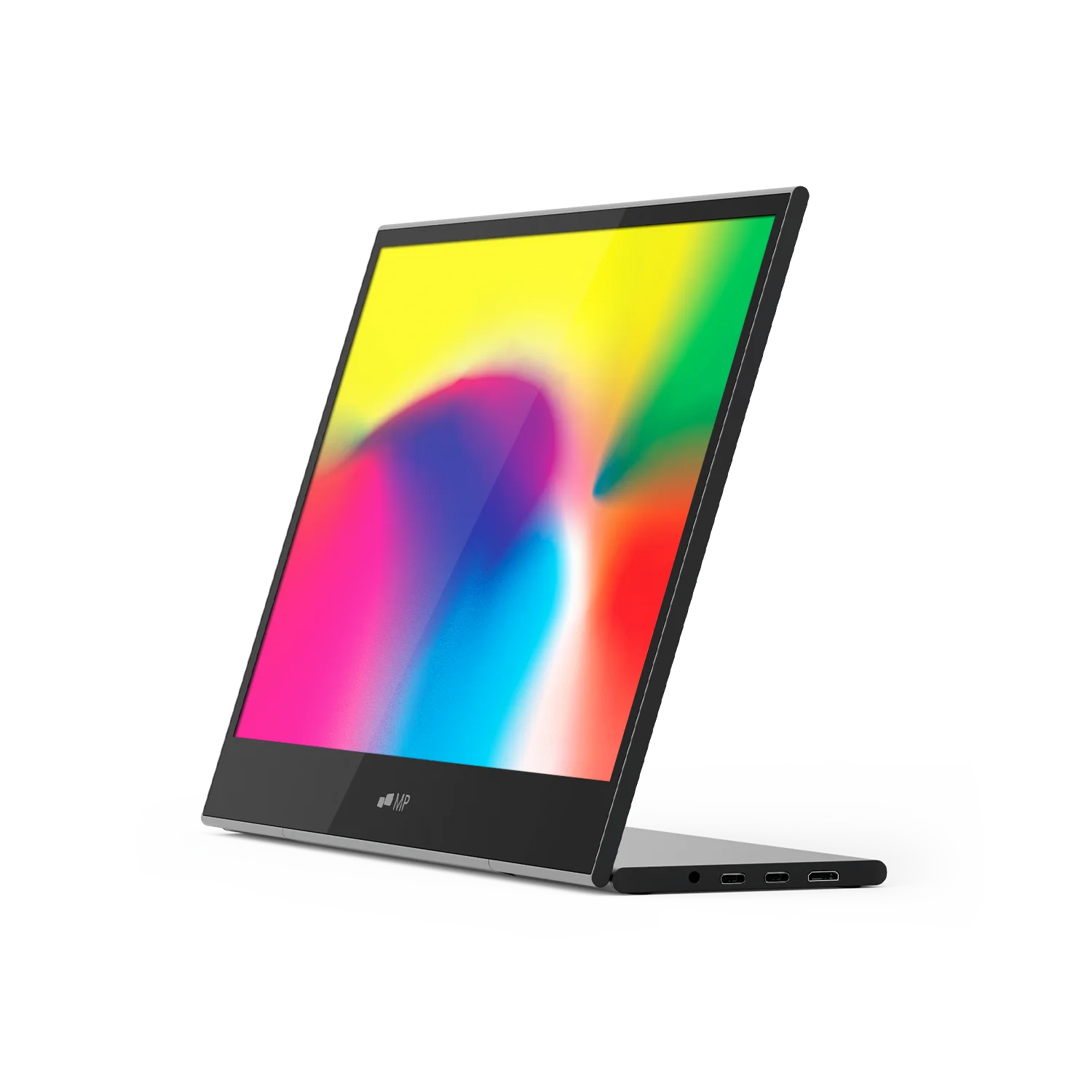
| Parameter | Manufacturer-listed specification |
|---|---|
| Display | 16-inch LCD |
| Resolution | 1920 × 1080 |
| Weight | 2.1 lb |
| Dimensions | 14.4 × 9.4 × 0.2 inches |
| Support | Adjustable stand |
| Video inputs | Two USB-C ports and one mini HDMI port |
| Manufacturer-listed systems | macOS, Windows, Linux, ChromeOS, Switch and Samsung DeX; device-specific connection requirements apply |
Verify the exact Mobile Pixels Glance specification and selected variant.
Mobile Pixels DUEX Max DS
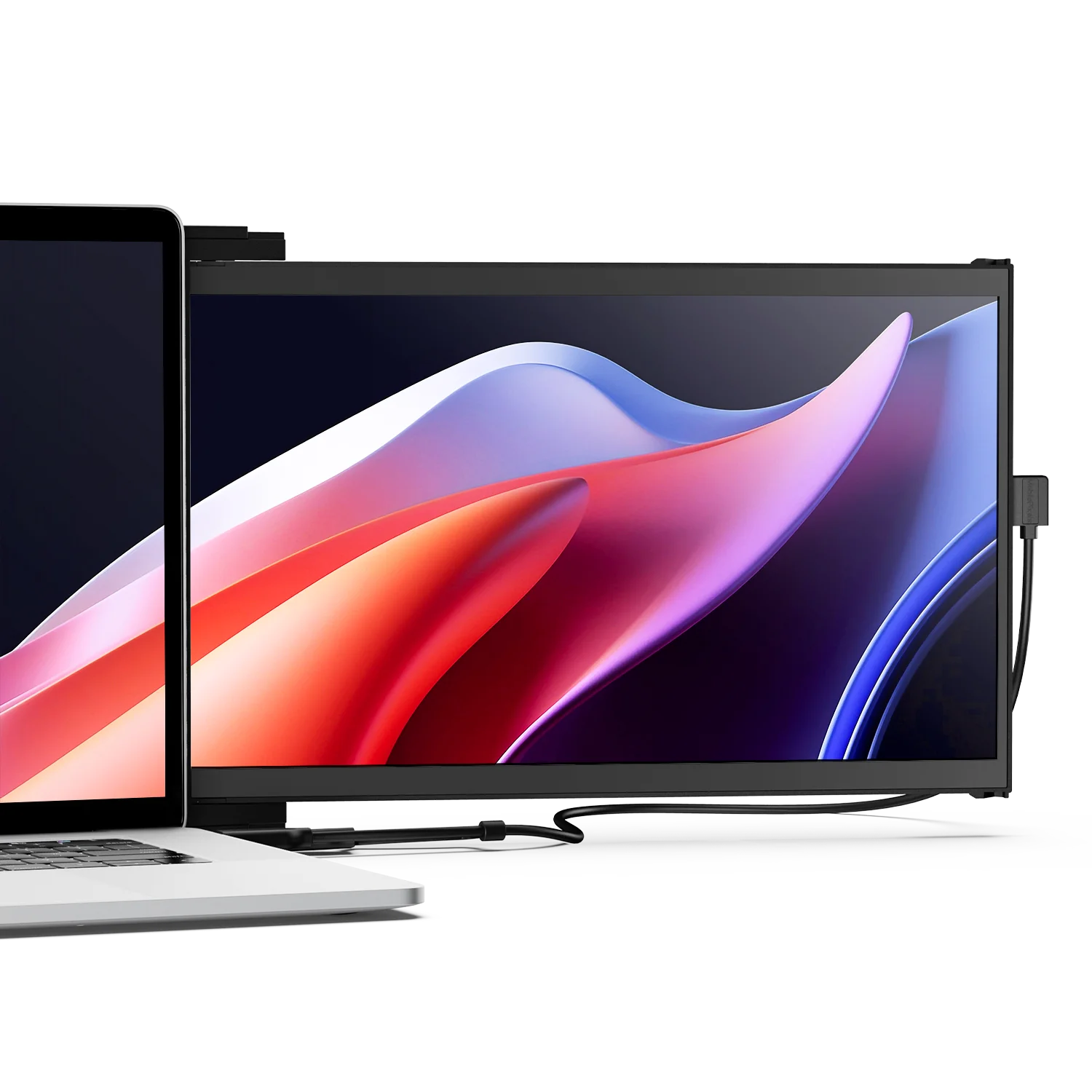
| Parameter | Manufacturer-listed specification |
|---|---|
| Display | 14.1-inch LCD |
| Resolution | 1920 × 1080 |
| Refresh rate | 60Hz |
| Weight | 1.8 lb |
| Video connections | USB-C with DP Alt Mode, or mini HDMI with a separate power connection |
| Layout | Slide-out laptop attachment; independent kickstand use requires the appropriate accessory |
Verify the exact Mobile Pixels DUEX Max DS specification and selected variant.
FAQ
How can I keep a video call open while taking notes without crowding the laptop screen?
For video calls and notes, keep the camera-facing call window on the main screen and put notes on a second area that does not obscure the camera or keyboard. Mobile Pixels DUEX and Glance offer attached and independent arrangements; Dell P1424H and HP E14 G4 are independent office comparisons. Apple Studio Display is a fixed-desk alternative. The best arrangement depends on camera position, legible notes and controlled screen sharing.
Do I need a high-refresh monitor for video calls?
A high maximum refresh rate is not the main requirement for keeping a call and notes visible. Focus first on supported connection, placement and readable text.
Will the meeting app automatically share the right display?
Do not assume it will. Select the intended display or application and confirm the preview before sharing.
Choose the next step
Find a portable second screen for your workflow. Match the selected model to your device and workspace before ordering.
Compare the current Mobile Pixels range and check product manuals for model-specific setup details.
Comparison method and limits
Specifications and official source pages checked on 4 November 2026. This is a documentation-based buying guide, not a hands-on benchmark. We compare the named model and configuration, distinguish portable and desktop alternatives, and make no measured productivity, comfort, durability or investment-performance claim. Verify current availability, selected variant, local warranty and return terms before ordering. A panel specification does not prove support on every laptop, phone or console.
References
Discover Tech Gadgets


Leave a comment
This site is protected by hCaptcha and the hCaptcha Privacy Policy and Terms of Service apply.